Free Express Shipping


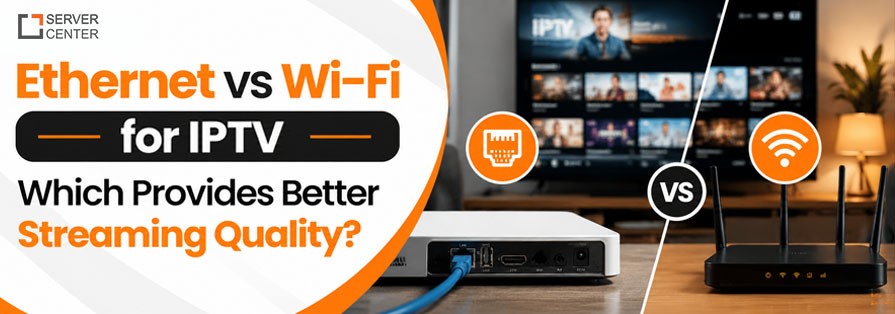
Ethernet provides better and more consistent IPTV streaming quality than Wi-Fi. A wired connection delivers a stable, dedicated data path with lower latency, fewer dropped packets, and no interference from walls, distance, or other devices — which is exactly what live IPTV streams need to avoid buffering and pixelation. Wi-Fi can still work well for IPTV, but only when the signal is strong, the router is modern (Wi-Fi 5 or newer), and the network isn't overloaded with other devices.
If you've ever had a match freeze at the worst possible moment or a channel pixelate during a big scene, the cause is very often the connection type — not the IPTV provider. Here's a full breakdown of how Ethernet and Wi-Fi actually compare for streaming, and how to decide which one your setup needs.
Why Connection Type Matters So Much for IPTV
The service is more than a download or loading a page. It is a real-time, continuous data stream; there should be a consistent and continuous flow of data for your device to play video smoothly. Unlike Netflix or YouTube, which buffer a number of seconds or minutes in front of the view, live IPTV is often nearer to real-time, leaving your connection with significantly less time to catch up on packets that are dropped or a brief time when the signal is weak. That is the reason why your connection quality and consistency is a crucial element for IPTV instead of virtually any other streamed content.
Ethernet vs Wi-Fi: Quick Comparison
| Factor | Ethernet | Wi-Fi |
|---|---|---|
| Connection stability | Very high — dedicated physical line | Variable — affected by distance, walls, interference |
| Latency | Low and consistent | Higher and less predictable |
| Speed ceiling | Up to 1 Gbps+ on standard cabling | Depends on router standard and signal strength |
| Interference | None | Affected by other Wi-Fi networks, microwaves, Bluetooth devices |
| Best for | 4K streaming, multiple simultaneous streams, live sports | Casual HD viewing on a strong, uncongested network |
| Setup effort | Requires running a cable to the device | No cable needed, works anywhere in range |
Does Ethernet Really Provide Better IPTV Streaming Than Wi-Fi?
Does Ethernet Really Provide Better IPTV Streaming Than Wi-Fi? Yes. Ethernet provides a direct, dedicated physical connection between your device and your router, so the data has one predictable path to travel with no competition from other wireless signals. Wi-Fi, by contrast, shares airwaves with every other wireless device nearby — neighbors' routers, Bluetooth speakers, baby monitors, and even microwaves can all interfere with the signal your streaming device is trying to receive.
This matters most for two things IPTV is especially sensitive to:
Buffering — caused by inconsistent data flow, which is far more common on Wi-Fi when signal strength fluctuates.
Pixelation and freezing during fast motion — common during live sports, where a single dropped or delayed packet is more noticeable than during slower-paced content.
What Causes Buffering on Wi-Fi Specifically?
- Distance from the router — signal strength drops sharply the farther your device is from the router, especially through walls or floors.
- Network congestion — too many devices (phones, laptops, smart home gadgets) competing for the same bandwidth at once.
- Interference from other wireless signals — neighboring Wi-Fi networks on the same channel, plus Bluetooth and cordless phone interference.
- Outdated router hardware — older routers (Wi-Fi 4 or earlier) simply can't handle multiple HD/4K streams as efficiently as newer standards.
- Weak or outdated Wi-Fi adapters in the streaming device itself — some budget streaming boxes and older Smart TVs have underpowered wireless chips.
When Is Wi-Fi Good Enough for IPTV?
Wi-Fi can absolutely deliver smooth IPTV streaming under the right conditions:
- Your router supports Wi-Fi 5 (802.11ac) or Wi-Fi 6, not older standards.
- Your streaming device is in the same room as the router, or has a clear, close line of sight.
- Your household isn't running many devices simultaneously on the same network.
- You're streaming primarily in HD rather than 4K, which requires less consistent bandwidth.
If all four of these are true, Wi-Fi will likely perform close to Ethernet for everyday viewing. The gap widens significantly once you add distance, walls, multiple simultaneous streams, or 4K content into the picture.
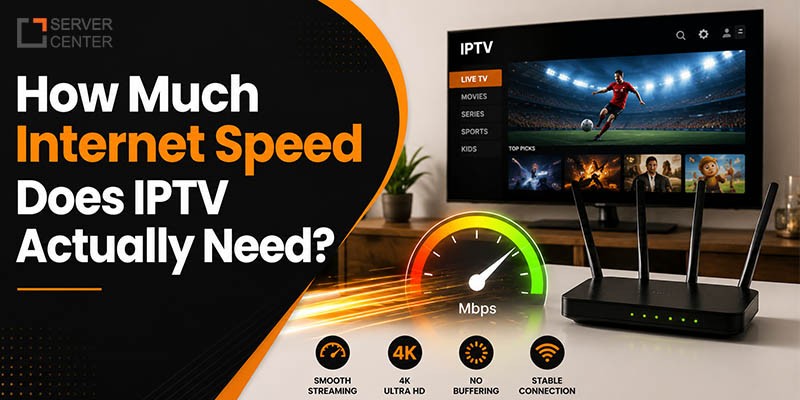
How Much Internet Speed Does IPTV Actually Need?
- SD streaming: 3–5 Mbps
- HD streaming: 10–15 Mbps
- 4K streaming: 25–40 Mbps
- Multiple simultaneous streams (2–3 devices): add 10–15 Mbps per additional stream
These numbers represent the minimum stable bandwidth needed — not the number on your internet plan. A 100 Mbps plan doesn't guarantee 100 Mbps actually reaches your streaming device if Wi-Fi signal loss is cutting that number down along the way, which is exactly why two households on the same internet plan can have very different IPTV experiences depending on whether they're wired or wireless.
Ethernet vs Wi-Fi for Live Sports and 4K Content
Live sports and 4K content are where the difference between Ethernet and Wi-Fi becomes most noticeable. Fast-motion footage — a goal, a boundary, a fast break — requires a steady stream of data with minimal delay. Wi-Fi's variable latency means these moments are more likely to show pixelation, brief freezing, or a drop in resolution, even on a connection that seems fine for slower content like news or talk shows.
For this reason, if you regularly watch live sports or want consistent 4K quality, Ethernet is the more reliable choice, particularly for the primary TV in the household where multiple people are watching at once.
How to Improve Wi-Fi Streaming If Ethernet Isn't an Option
Running a cable isn't always practical. If Ethernet isn't realistic for your setup, these steps meaningfully improve Wi-Fi streaming quality:
- Use the 5GHz band instead of 2.4GHz where possible — it is usually faster and less crowded though the range is shorter.
- Position the router in a central and slightly elevated spot — keep it away from walls metal objects and other electronics that can interfere with the signal.
- Reduce the number of devices streaming or downloading at the same time — too many active devices can slow everything down.
- Upgrade to a Wi-Fi 6 router if you are still using an older one — it handles multiple streams much better and the difference can be pretty noticeable.
- Use a mesh Wi-Fi system or a Wi-Fi extender if your streaming device is far from the router — this helps improve signal strength in weak areas of the house.
- Use a powerline adapter as a middle-ground option — it sends data through your home electrical wiring and often gives you a more stable connection than regular Wi-Fi without needing a new Ethernet cable.
Ethernet vs Wi-Fi: Which Should You Choose for IPTV?
- Choose Ethernet if — you watch live sports stream in 4K have multiple people streaming at the same time or your streaming device is far from the router.
- Choose Wi-Fi if — your router is modern your device is close to the router you mostly watch HD content and running a cable is not practical.
- Consider a powerline adapter if — you want more stability than Wi-Fi but cannot run an Ethernet cable to your TV. to avoid buffering and pixelation.
- Wi-Fi can still work fine for IPTV but only when the signal is strong the router is modern like Wi-Fi 5 or newer and the network is not overloaded with too many devices at the same time.
How to Test Whether Wi-Fi Is Actually Your Problem
Before blaming your IPTV provider for buffering or pixelation it is worth checking your connection first because that is honestly where the problem usually is try this simple test connect your streaming device directly to your router with an ethernet cable for a day and see if things get noticeably smoother if the buffering disappears on ethernet then your Wi-Fi signal was the real problem all along not your subscription or your internet plan.
You can also run a speed test directly on the actual device you stream from because a lot of smart TVs and streaming boxes have a built in network test sitting right there in the settings do not just check the speed on your phone standing next to the router because your phone almost always shows a stronger signal than your TV does from across the room and that can seriously mislead you when you are trying to figure out where the actual problem is coming from.
A few other quick checks:
Restart your router — A quick reboot clears temporary congestion and refreshes the connection which can often fix random buffering issues.
Check for firmware updates on your router — Older firmware can slow performance and create problems that are usually simple to fix.
Test at different times of day — if buffering gets worse in the evening it is usually a sign of network congestion in your home or your ISP local area, not the router itself.
Setting Up Ethernet for IPTV: What You'll Need
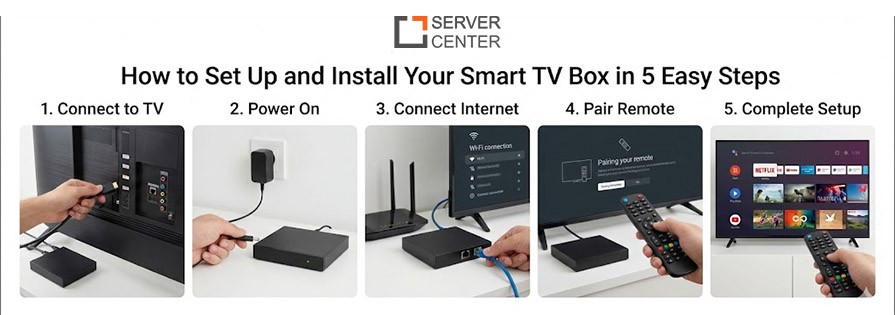
If you've decided Ethernet is the right move, the setup is usually straightforward:
- An Ethernet cable long enough to reach from your router to your streaming device (Cat6 cables are a reliable, affordable standard for home use).
- A free Ethernet port on your router — most routers have four; if you've run out, a simple network switch adds more.
- An Ethernet port on your streaming device — most Smart TVs, IPTV boxes, and streaming boxes like Firestick 4K Max and Apple TV support wired connections, sometimes via a USB-to-Ethernet adapter.
- Once connected, most devices automatically detect and prioritize the wired connection over Wi-Fi, so no additional configuration is usually needed.
The Bottom Line
For the best and most consistent IPTV streaming quality especially for live sports and 4K content ethernet is the better choice it removes the main problems that usually cause buffering and pixelation like distance interference and network congestion.
Wi-Fi can still work well for regular HD viewing if your router is modern and your streaming device is close enough but once your household has more devices connected higher quality streams or live sports running at the same time a wired connection becomes the more reliable option.
Frequently Asked Questions
Is Ethernet always better than Wi-Fi for IPTV?
Honestly yes ethernet gives you more stability and consistency than Wi-Fi but if you have a modern Wi-Fi 6 router nearby it can still handle everyday viewing pretty smoothly
Why does my IPTV buffer even with fast internet?
Fast internet doesnt always mean strong signal buffering usually happens because of Wi-Fi interference or network congestion not your actual plan speed so the signal reaching your device matters a lot
Does Ethernet improve 4K IPTV streaming?
Yes definitely 4K needs a steady 25 to 40 Mbps and ethernet handles that way better than Wi-Fi which can be inconsistent and shared across multiple devices
What internet speed do I need for IPTV?
You need at least 10 to 15 Mbps for HD and 25 to 40 Mbps for 4K and add another 10 to 15 Mbps for every extra stream running at the same time in your house
Can I use a powerline adapter instead of Ethernet?
Yes a powerline adapter runs data through your home electrical wiring and gives you way more stability than Wi-Fi which makes it a solid option when running an ethernet cable is not possible