Free Express Shipping


TL;DR
Installation of a smart TV box is easy, quick, and turns any TV into a comprehensive entertainment station. Whether you are working with a Unipro 4.0 TV box or an MAG544W3 IPTV box, the installation requires only five easy steps, which include connecting your box to your TV, connecting your box to the internet using either Wi-Fi or an internet cable, performing the initial setup, downloading apps or IPTV, and testing for seamless stream-ability. With ServerCenter Calgary providing quality hardware, enjoy hassle-free performance, brilliant display, and hassle-free IPTV connectivity.
Smart TVs are brilliant, but a smart TV box is a whole new experience when it comes to entertainment. Perhaps you’re in need of improved streaming, more apps, better processing, or IPTV functionality. A smart TV box can give your television a complete makeover without having to upgrade to a new television set.
This question that customers at ServerCenter Calgary pose repeatedly is, “How hard is it to install a smart TV box?”
The truthful answer is, not at all.
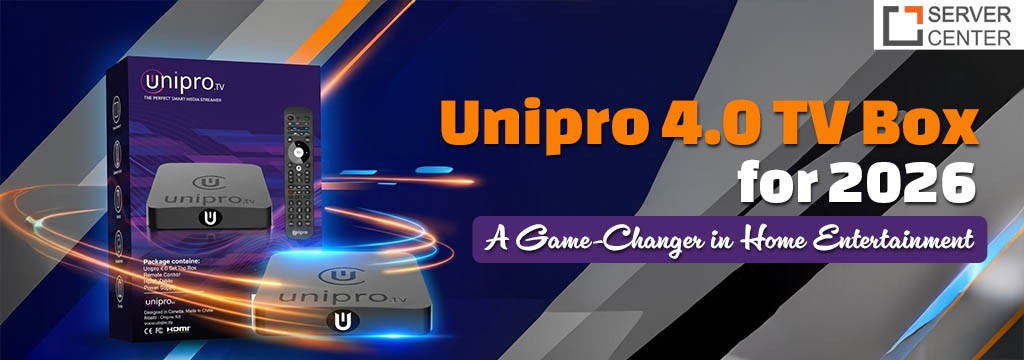
Whether it’s a Unipro 4.0 TV box, MAG544W3 TV boxes for viewing IPTV, or any other smart TV box, it’s simple to set up and takes only a few minutes, even for a person with little technical knowledge in computer systems.
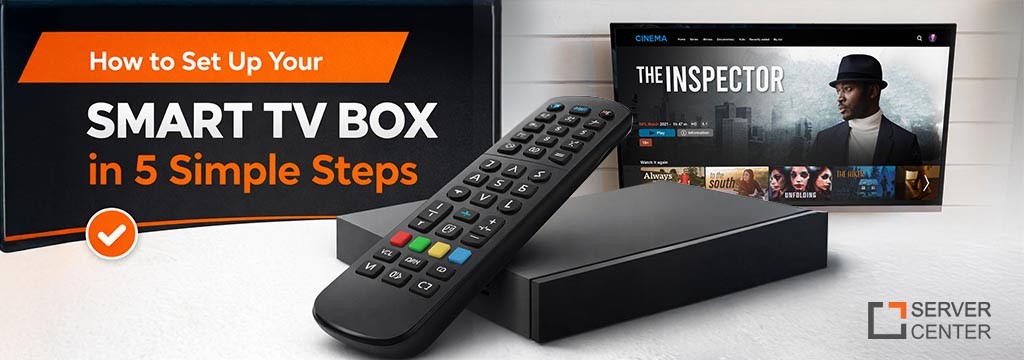
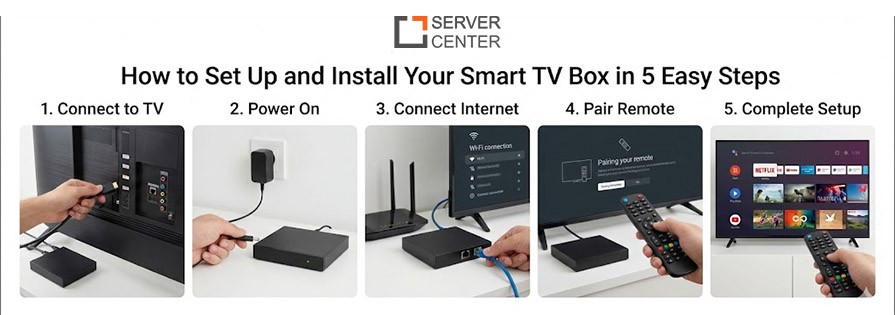
Below is a guide to having your smart TV box working in just five simple steps.
Step 1: Position Your Smart TV Box Close to Your Television
First, you will want
Connect one end of the HDMI cable to the smart TV box
Connect the other end to an HDMI port on your TV
Unpack the power adapter and turn on the box
Finally, using the TV's remote, switch to the correct HDMI channel to access the smart TV box's startup menu. You should be able to see the startup menu of the smart TV box.
Step by step, this process is the same in both cases, whether it is a Unipro 4.0 TV Box or a MAG544W3 IPTV box.
Step 2. Connection to the Internet
In order to keep working properly, your smart TV box requires an internet connection.
Wi-Fi Connection
Most people like Wi-Fi:
- Move to Settings
- Select Network
- Select your Wi-Fi network
- Password to enter
- Wired Connection
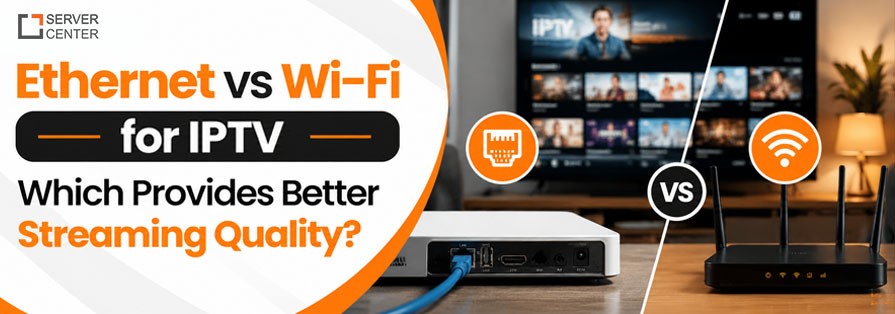
For a stable IPTV session and a better user experience with the MAG544W3 IPTV box, an Ethernet connection should be used. This ensures a fast connectivity and
- Connect the Ethernet cable into the box
- The link is normally automatic
- Having a strong internet connection will allow you to stream your videos smoothly, download apps quickly, and have little to no buffering.
Step 3: Finish the Initial Start-Up
Once your smart TV box has access to the internet, it will walk you through some basic start-up instructions.
These may include:
- Choosing your language occupied
- Setting the time zone
- Setting display resolution
Devices such as Unipro 4.0 TV Box come with the ability to self-detect optimal settings; hence, you will not be required to adjust many settings manually. Simply follow the instructions and select your preferences.
It takes only a few minutes, but it helps to start optimizing from the outset.
Step 4: Installing Apps or IPTV Services
- It’s now time for the fun part – adding content.
- For Streaming apps.
If your smart TV box has an app store:
- Open app store
- Download apps such as YouTube, Netflix, or the ones you normally use. Some apps are
- Use existing account
- For IPTV Setup
If you're using, say, an IPTV box such as MAG544W3, your IPTV service provider might supply you with:
- Enter Login credentials
- Or pre-configured access
Put in the information given to you, reboot the box if necessary, and you should be good to go. This is where the high-quality hardware of ServerCenter Calgary truly excels—fast loading, smooth navigation, and finally, consistent speeds.
Step 5: Test and Optimize Your Viewing Experience
Sometimes, your video Once all of that is installed, take a moment to ensure that:
- Channel change speed
- Video quality
- Audio Sync
- Remote Responsiveness
If necessary, you might want to fine-tune your display settings, output audio, or reorganize applications.
Most Smart TV boxes come as “plug and play” devices. You would thus need to make very few adjustments. If there are some problems that you encounter, though, a simple reboot or check on internet speeds would help.
Why Choose a Quality Smart TV Box from Server Center Calgary?
Not all smart TV boxes are created equal. Budget components can mean your device is constantly buffering or freezing or has a very short lifespan.
ServerCenter Calgary specializes in proven and reliable devices such as the Unipro 4.0 TV Box and MAG544W3 IPTV box that are made to function in real life scenarios.
They choose ServerCenter due to:
- Their customers’ trust
- Trailing performance
- Long-term reliability
- Uncomplicated Setup
- Local Support and Help
If your equipment is functioning as it should, enjoyment becomes seamless.
Common Setup Issues to Avoid
There though installation is quite straight forward, the following are a couple of things that you should keep in mind:
- Using the Wi-Fi signal that is far from the router.
- Forgetting to change the TV input setting to the proper HDMI slot
- Missing software updates during initial installation cycles
- The use of poor-quality HDMI cables.
“Small problems can make a big difference in performance.” These are exactly what laser printer manufacturers point out to users.
Conclusion:
On a concluding note, we can say that there's no need for technical know-how or frustrating messing around in setting up a smart TV box. With the right device in front of you, you can be fully connected in minutes. Whether you decide to install a Unipro 4.0 TV Box for normal streaming purposes or a MAG544W3 IPTV box for IPTV services, you can smoothly initiate the process if you follow these five steps. Additionally, since your device will be from a reputable source such as ServerCenter Calgary, what you’re buying isn’t just an electronic device—it’s an improved, easier experience for watching TV.