Free Express Shipping


TL;DR:
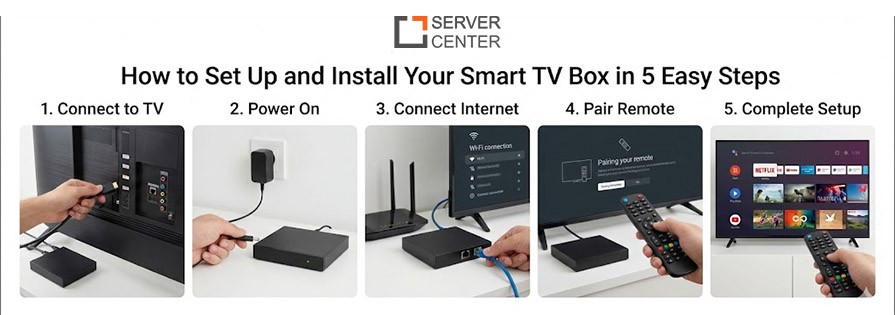
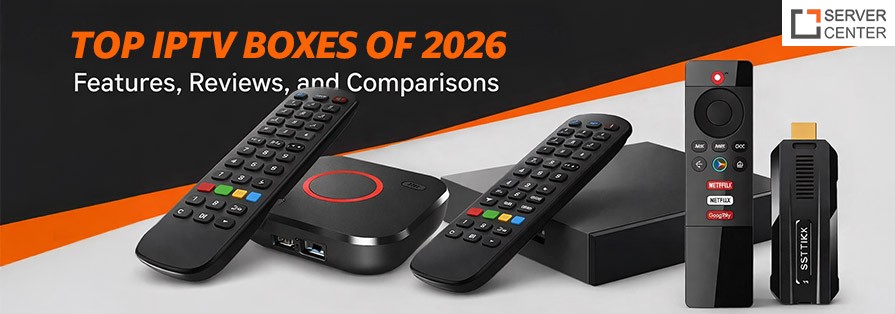
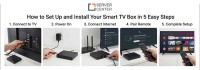
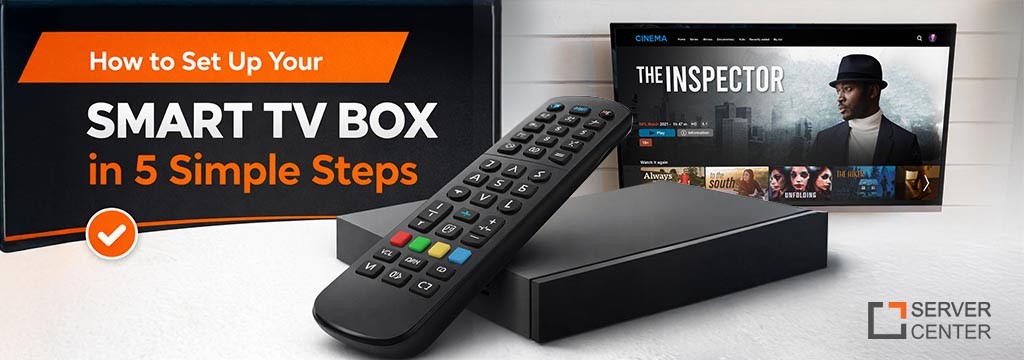
The installation process for your Smart TV Box is quite hassle-free. You can easily connect the device to your TV via an HDMI cord, along with connecting to the internet through either Wi-Fi or an Ethernet cord. Next, you install the IPTV app by logging in with your username and password. The settings can also be adjusted for an enhanced experience. No matter which model you choose, such as the Mag555 IPTV Box, 4K IPTV Box, or any other device by Server Center, all you have to do is follow the same installation procedure to enjoy an array of devices for uninterrupted HD and 4K viewing. Setting Up IPTV Smart TV Box is a relatively simple procedure, which has opened a wide array of entertainment for you to enjoy. Be it a Mag555 IPTV Box or a 4K IPTV Box, the procedure is relatively identical for everybody. In this blog, I am here to show you the simple 5-step setup for Configuring IPTV Smart TV Box from Server Center to fully enjoy the features of your IPTV box from Server Center.
Step 1: Unboxing and Linking Your Smart TV Box
The very first step involves getting your device unboxed and establishing a link to your television set. The procedure follows:
- Take special care to unbox all electronics, ensuring that all accessories are present with the electronics. Also, check that none of the cables or remotes are missing.
- Connect your Smart TV box to any empty HDMI port in your TV.
- Additionally, if you find yourself using either the Mag555 IPTV Box or the 4K IPTV Box, then it is important to ensure that the television is HD-compatible. You need a television that has the ability to watch HD and/or 4K.
- Connect the power cord to the television box and then to a power source.
- And now you are ready to continue.
Step 2 → Connect to internet
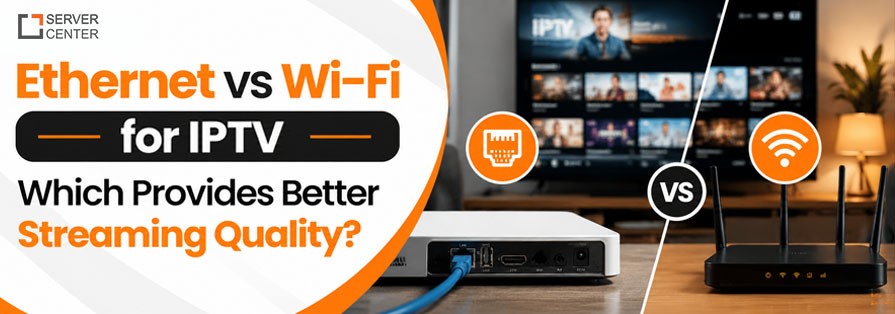
Thus, for you to enjoy streaming, you have to connect the Smart TV Box to the internet, whether for live TV shows, TV dramas, or other services such as Netflix. The two ways by which you can connect your device to the internet are as follows.
WiFi Connection: 1. Tap Network or WiFi. 2. Finally, through the search results, you would choose your home Wi-Fi network. 3. Connect with your WiFi password.
Ethernet Connection
1. In regard to a more stable and faster internet connection, specifically for streaming 4K, we would advise you to use the Ethernet cable to connect the Smart TV Box to the internet. 2. You will then connect your Ethernet cable to the box at the back and then to your router. 3. It should be capable of automatically detecting the wire that is connected to the Smart TV Box. 4. Since you now have a stable connection to the Internet, we're ready to move ahead.
Step 3: IPTV App Installation
Upon completion of the internet setup in your internet connection, the second most important task is to install the IPTV app by which you can easily access the live sessions, movie sessions, as well as the on-demand sessions. This app is already available in the Server Center IPTV Box or Mag555 IPTV Box that is bought from a particular manufacturer by which you can access the sessions free of cost by following the below-given procedure:
- Go to either the App Store or Google Play Store that is found on your Smart TV Box.
- The official supported IPTV application must then be searched for. If one is utilizing their service because they are dissatisfied with a product such as MAG555 IPTV Box, for
- example, then searching for Stalker Portal or any supported application for IPTV is required.
- The app can be installed by downloading it.
- Then, open the IPTV app that has been installed and enter the login credentials that would be provided for you by the IPTV service provider.
Step 4: Customize logging settings
As it is installed at this point, the next step will be your account log in for the application. In terms of first time log in, one should follow the following guidelines for the application:
Open the IPTV app on your device, then log in to your account using your log-in details that are usually provided by your IPTV service provider. Most of them would need you to provide the username and password, which would have been sent once you signed up for their services. In some instances, if you have purchased the Server Center and Mag555 IPTV Box, this information would have been given to you.
Apart from having the capability to log in to the site, there are other changes that could make one feel comfortable while viewing the site and are included such as:
- Resolution: This will be up to you based on the capability of the television and the quality of the Internet connection you have concerning 4K or HD resolution.
- Audio Settings: In this setting, you have to select the appropriate audio type depending on your TV or audio system.
- Language Choices: It is your choice which language should be used in the app/subtitles.
Step 5: Start Watching and Relax!
Since everything is up and running, the time to enjoy what you can get out of the Smart TV box has finally arrived. Whether it’s videos, movies, or even television, it is most likely that it would all be streamed live on your Mag555 IPTV box or 4K IPTV box in crystal-clear video quality.
Your remote control will enable you to navigate from one channel to another, VOD resources, as well as online streams supported by your IPTV application. In this way, you will be able to access various categories, favorite channels, as well as change video settings as you wish.
If you own a Server Center IPTV Box, make sure that you can utilize the user-friendly interface that allows for access to various programming types, such as “live television viewing” and “on-demand movies.
Moreover, you need to familiarize yourself with various different elements of the service that could prove to be beneficial for you. Examples of such components of the service include the ability to record “live television programs,” the ability to personalize subtitles, and the development of a “favorites list.”
Final Thoughts:
Setting up your very own Smart TV Box feels extremely simple to me, which enables you to enjoy limitless enjoyment and fun. Whether it's your Mag555 IPTV Box or your other 4K IPTV Box or other pieces of electronics created by Server Center or other companies, it's really not that simple. With a few simple steps such as connecting your box to your television set or even internet connections for your box, installing your IPTV application on your box, as well as your applications login to it afterwards, it won't be long before you're able to entertain yourself.
Frequently Asked Questions:
1. Do I need a special TV to use a Smart TV Box?
No, it is not necessary for any special TV; although for optimal viewing, in my opinion, one is much better off with at least an HD TV or a 4K TV. Even the TV receiver’s high definition might surpass what some TVs can handle.
2. Can I use my Smart TV Box with Wi-Fi instead of an Ethernet connection?
Yes, you can use Wi-Fi to connect your Smart TV Box to the internet. But for 4k streaming or watching live TV, we strongly advise you to connect your device to the internet using an Ethernet cable.
3. Where and how would I find IPTV apps for my Smart TV Box?
In the event that you do not have the IPTV apps for the Mag555 IPTV Box or Smart TV Box, you will only need to access the App Store on the box and install the specific app offered by the IPTV service you are using. This will be provided for you by the provider once you have activated your subscription.
4. What if my Smart TV Box isn’t connected to the internet?
Connecting to your internet, you may wish to check your Wi-Fi key or confirm that your Ethernet cable is properly plugged into your box as well as to your router. Sometimes, rebooting your router or your Smart TV box may solve this problem for you.
5. Can I access content on my other devices using my Smart TV Box?
Of course, this should be possible using many IPTV services. There should be no problem streaming different forms of media to multiple devices all at one time. The IPTV services you've signed up for should be able to provide you information regarding how many different devices you should be running your IPTV services through using your Mag555 IPTV Box or your other 4K IPTV Box.
6. How do I provide myself with optimal viewing on my Smart TV Box?
For optimal viewing, I do personally think that you should be able to provide yourself through your Smart TV Box through your own possession of a 4K or superior television set, as well as possessing high-speed internet – that being minimum internet speeds of 25 Mbps for your internet. Go to your IPTV app to alter your resolution settings to allow either 4K or high-definition viewing.